Tickets submodule is a core of the whole Ticketing Support System. In the initial overview it is possible to browse and edit all tickets logged by the system or create new ticket entries.
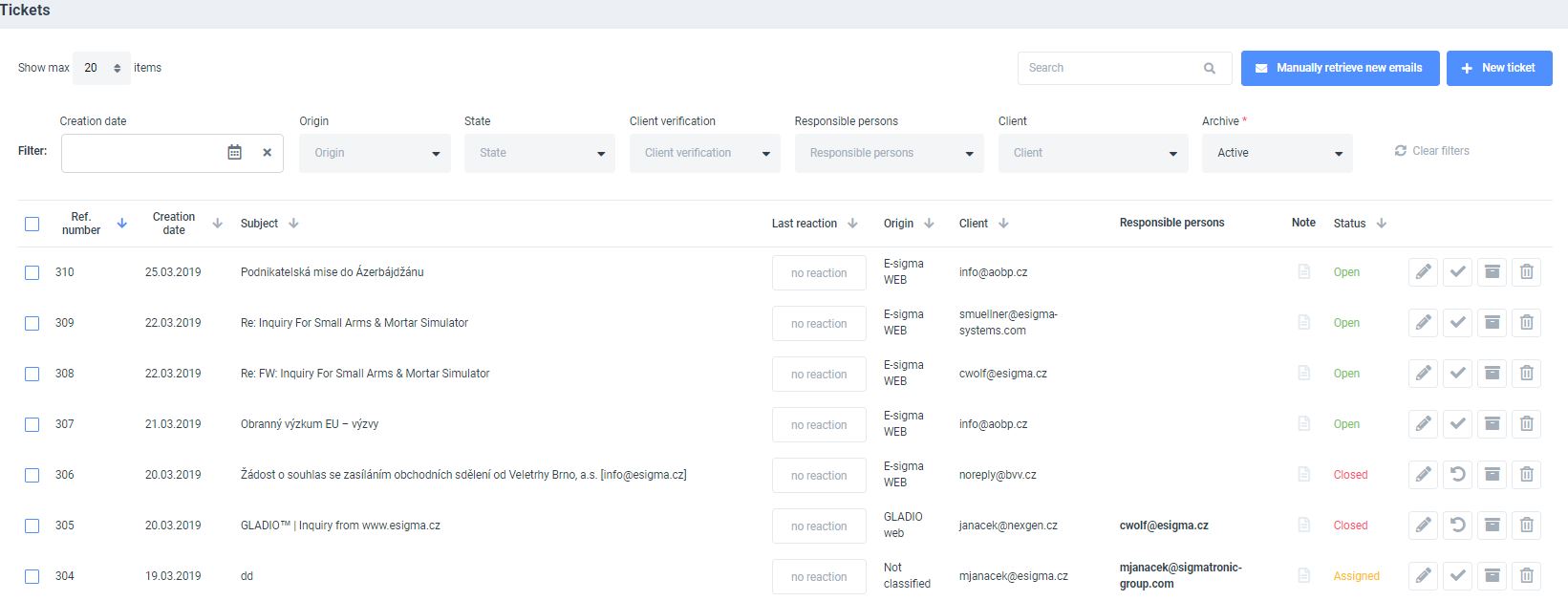
A full-text search, advanced filtering and a specified item-per-page display functionality is available at this submodule.
TICKETS CAN BE FILTERED AS FOLLOWS:
Creation date – the user chooses parameters in the calendar
Ticket origin – (To find out more about the ticket origin, please view our dedicated section Origin.)
Status – a current state of a selected ticket that can be further defined as:
- Opened – the ticket has been registered in the system
- Assigned – the ticket has been assigned to a competent team member
- Processing – the communication with the client has been established
- Closed – the ticket has been resolved successfully
Client verification – a new client ( the ticket has not yet been issued) or an existing client (more information available at the dedicated page Clients).
Responsible person – according to a responsible person of specific team
Client – according to a specific client
Archive – this filter allows to categories tickets on active ( all items from the Status filter) or archived (the ticket will be moved into an archive).
TICKETS CAN BE FILTERED ACCORDING TO THEIR:
Reference number – numerical scale.
Creation date – according parameters above.
Subject – an email subject defined by a client.
Last reaction – a colour coded measure of the last response.
Origin – more information in the text above.
Client – client’s contact email address – all existing/verified clients are shown with a green underline.
Responsible person – an administrator assigned to a specific ticket.
Notice – a comment alert created by a responsible person in the internal chat of the ticketing system. Unread or new comments are highlighted and shown in colour.
Status – more information in the text above.
Quick actions can be performed for all single tickets by using icons on the right.

- EDIT
- CLOSE
- ARCHIVE
- DELETE (only admin functionality)
The submodule also allows adding NEW TICKETS or refresh the whole relation with the MANUALLY RETRIEVE NEW EMAILS button.
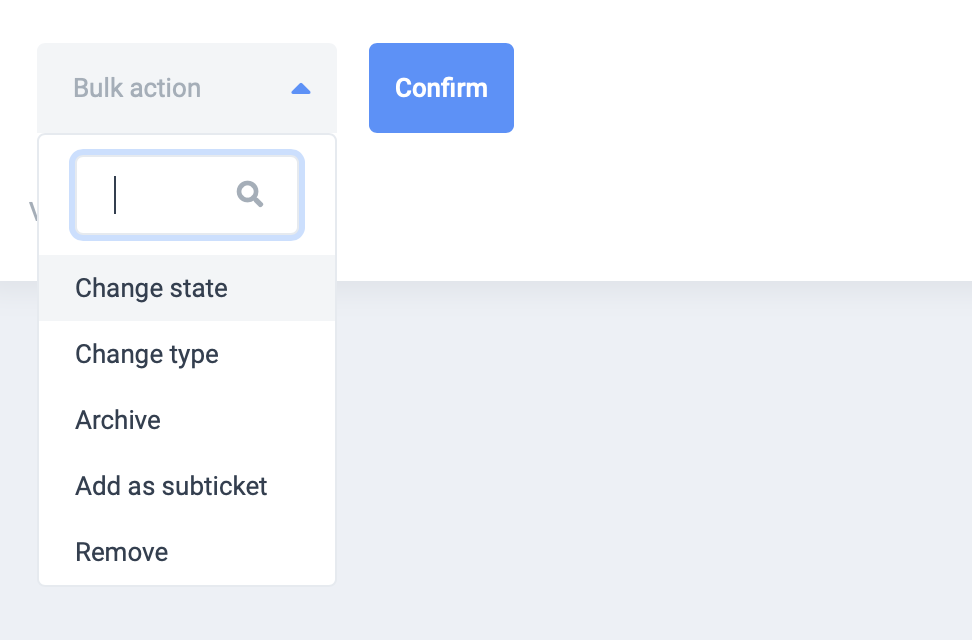
BULK ACTIONS such as change state, change type, archive, add as a sub-ticket and remove (only admin functionality) can be also performed from the drop down selector menu. The function ADD AS A SUB-TICKET allows merging of two tickets into one. More information on ticket details can be found here.