The submodule Settings serves primarily for configuring email addresses and can be split into two main categories:
Incoming email address
This address serves for uploading new tickets to the Ticketing System. The first defined email address automatically becomes an outgoing email address.
Outgoing email address
This address is used for all outgoing communication with the client through the ticketing system. There can only be a single outgoing communication email address at one time.
If the outgoing communication email address is not defined, the system will automatically alert the user at the first attempt of sending a ticket reply.
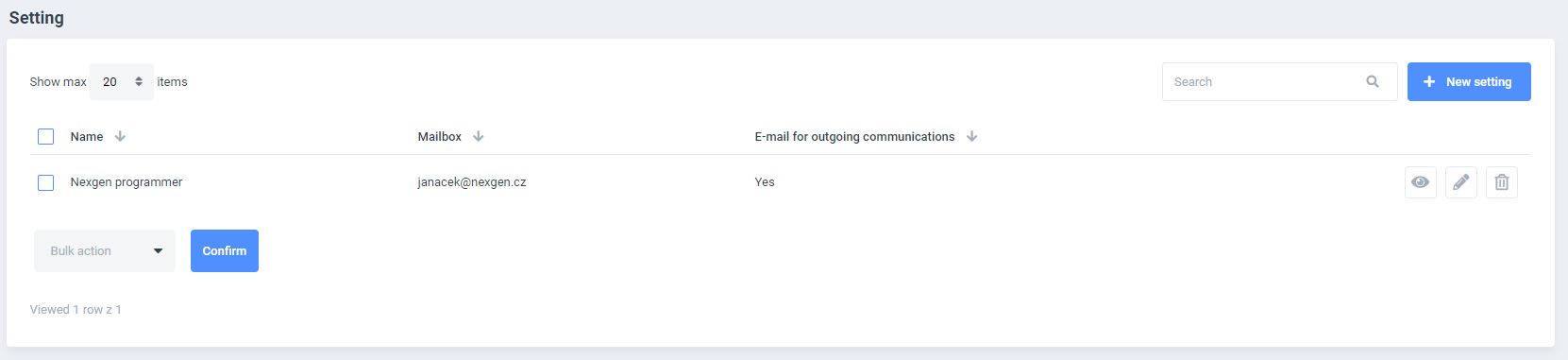
A table with the list of all email addresses is available upon opening the submodule. A full-text search, advanced filtering and a specified item-per-page display can be performed.
Following parameters can be defined: name, email address and a choice to apply the address for all outgoing communication.
It is also possible to select specified actions per item such as:
- DISPLAY
- EDIT
- DELETE (only admin functionality)
New settings and bulk actions can also be executed within the Settings Submodule with a NEW SETTINGS or BULK ACTION buttons (remove is only admin functionality).
The EDIT SETTINGS window is displayed after pressing NEW SETTINGS or EDIT buttons. Parameters of selected email addresses can be defined through this settings.
A NAME attribute can be defined for an easier identification. It is not possible to save any changes without an allocated name attribute.
Moreover it is possible to define the SERVER ADDRESS, PORT, SECURITY, USERNAME AND E-MAIL.
The outgoing communication address between the client and ticketing system can be set up though the APPLY FOR OUTGOING COMMUNICATION checkbox.
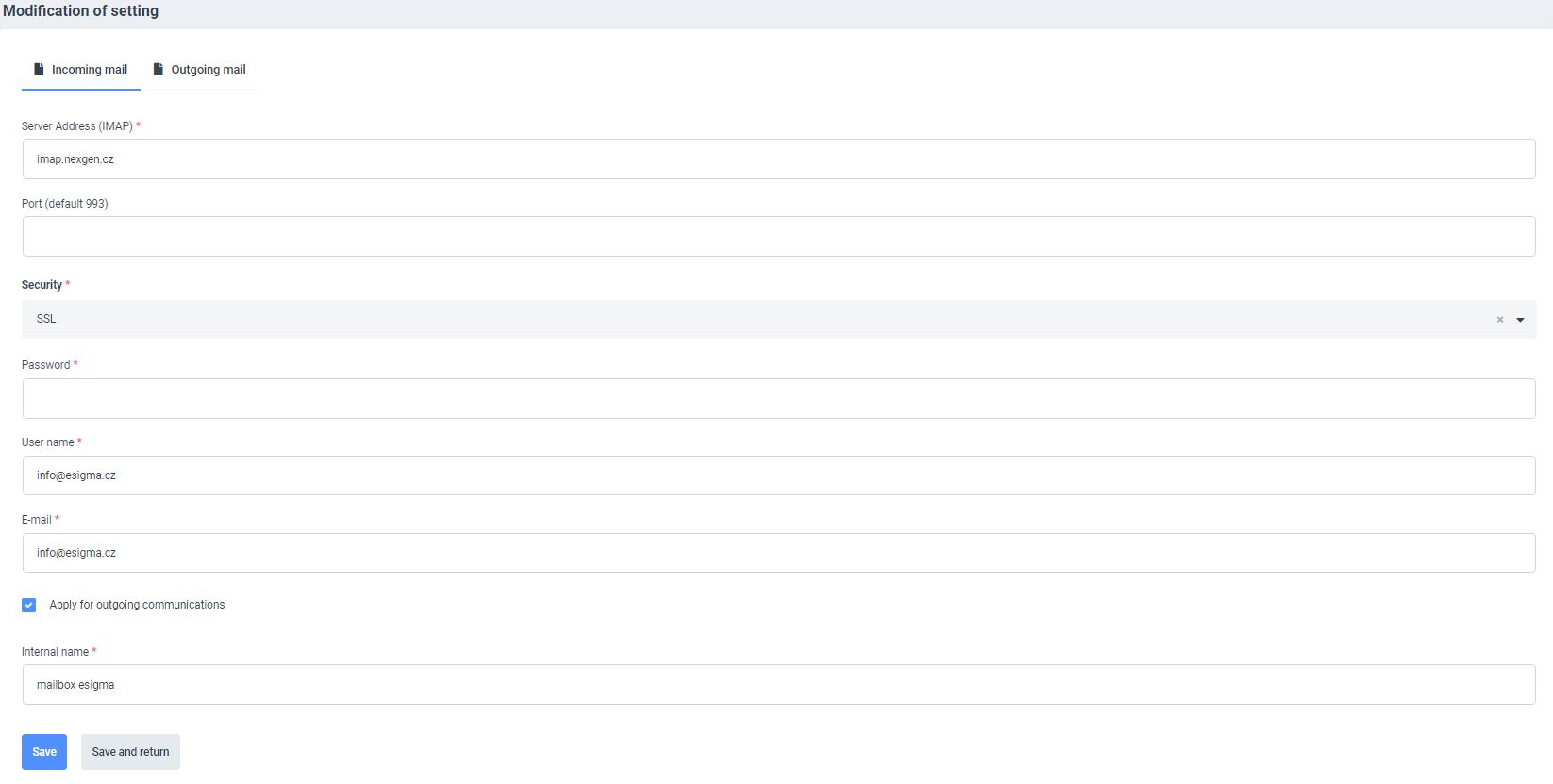
After filling out all fields it is important to save all edits. The SAVE or SAVE AND RETURN buttons can be used to save the last action. An autonomous check is performed automatically by the system during this process to verify details of all email connections. The process of saving won’t be completed if invalid details are detected by the system.
An important note: pressing of the RETURN button in the BROWSER will abort the saving process and will NOT SAVE the last performed action.

